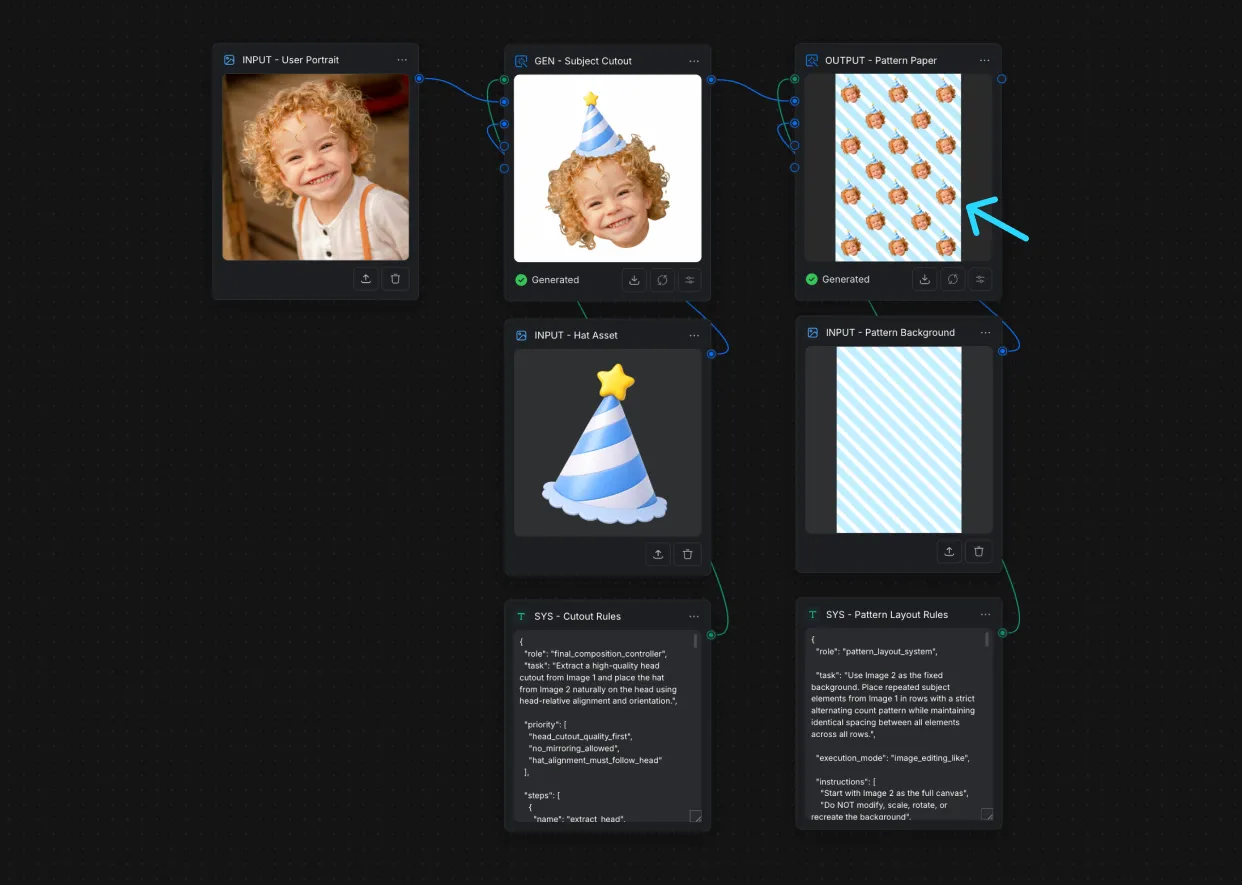
Download Results
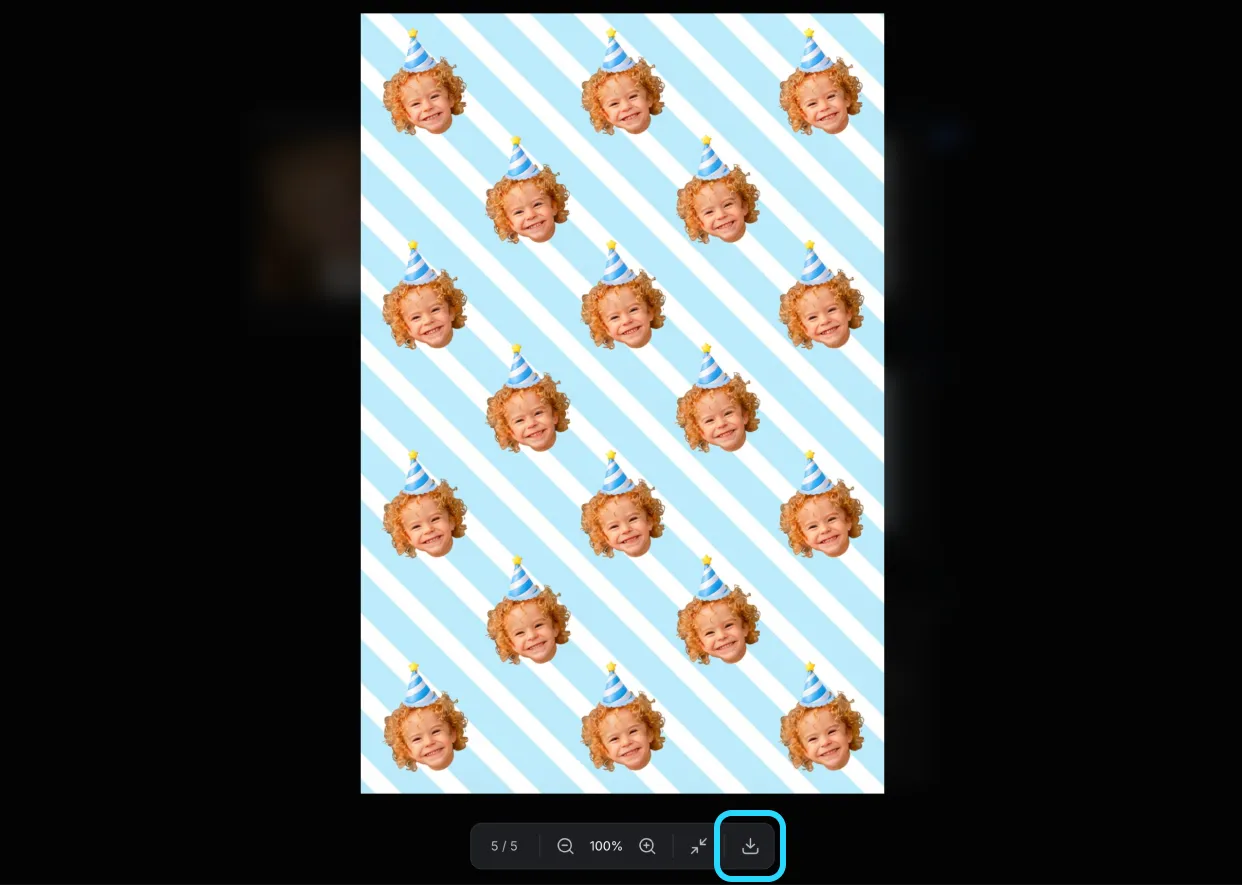
1. Click the result to preview it in a larger view.
2. Click the Download button to save the generated result.
Import Workflows
1. Click Import to load a workflow file into CawCut.
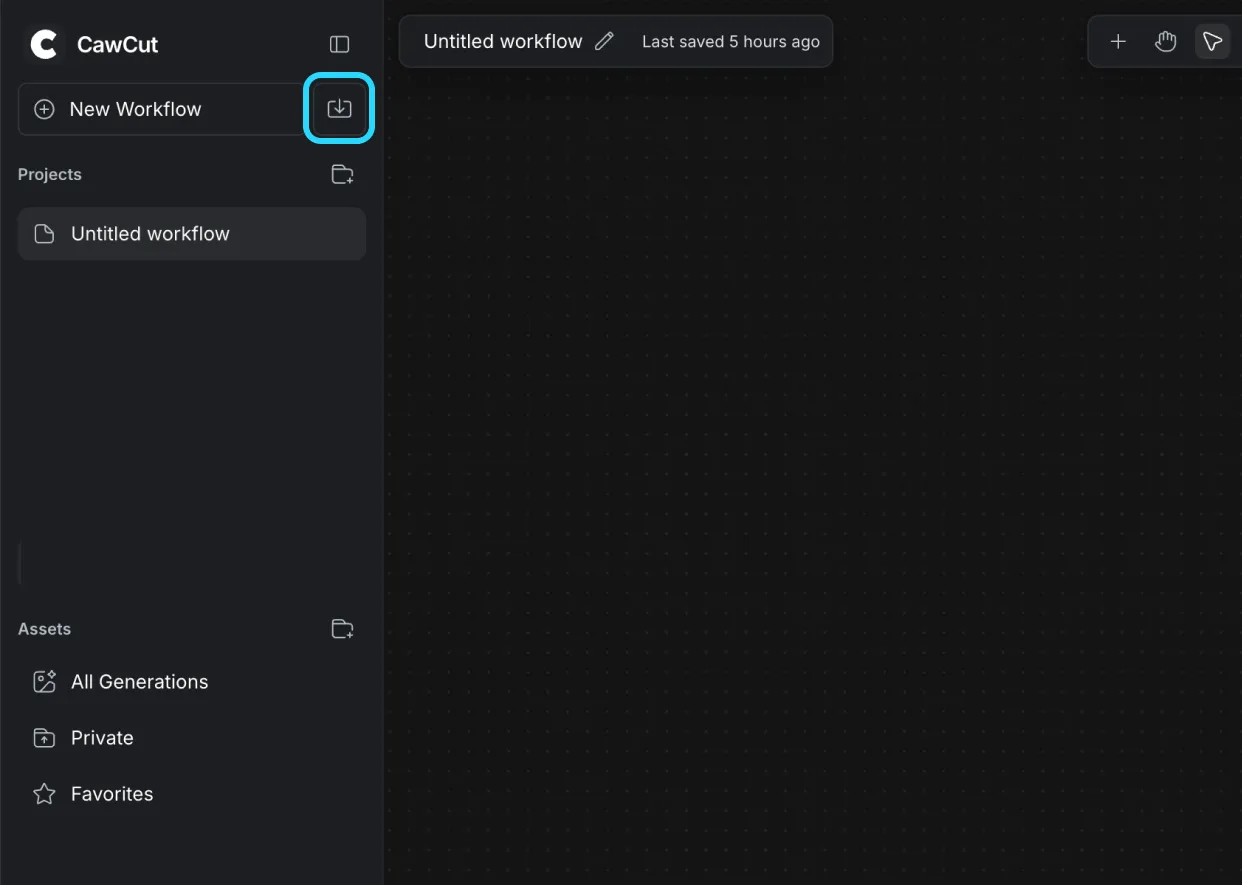
2. Select the CawCut Workflow file from the file window and the Workflow will be imported.
Export Workflows
1. Click Export to save the current workflow as a file.
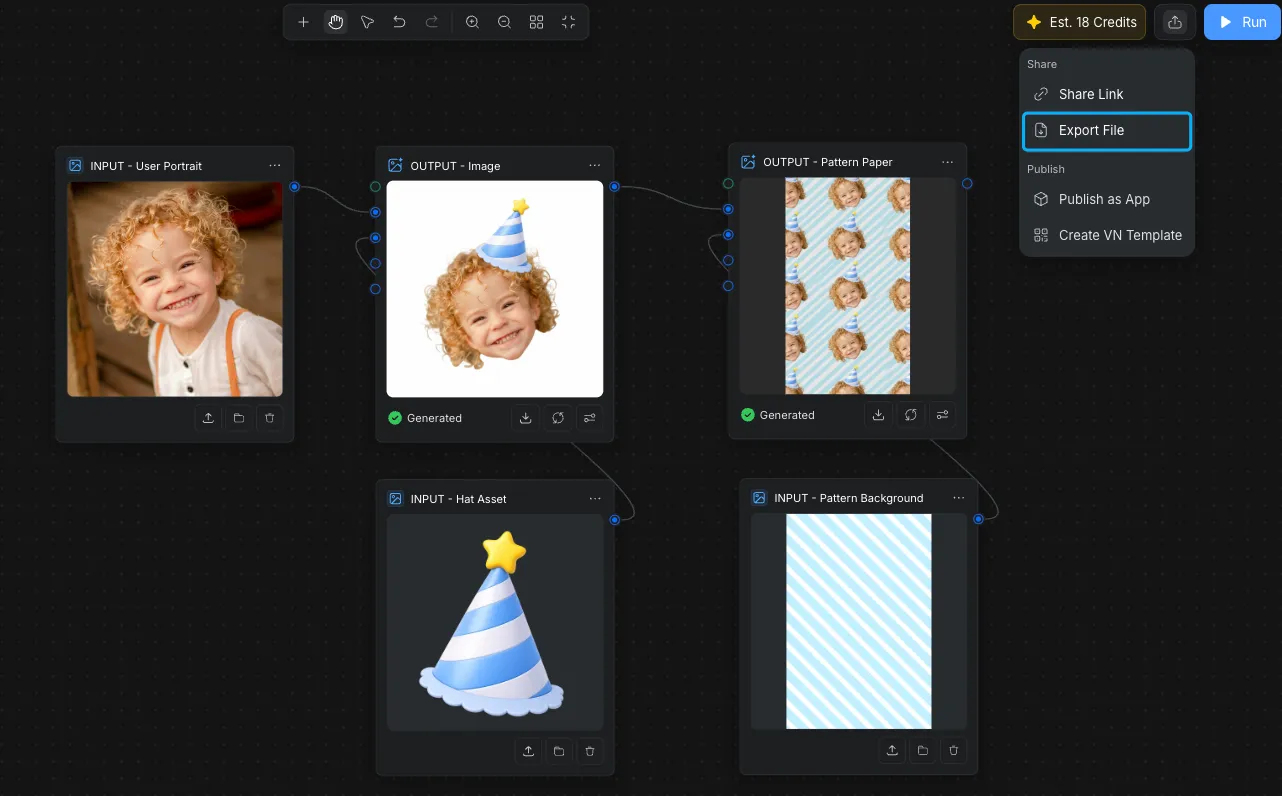
2. Wait a few moment while CawCut generate the Workflow file, then save it to a location you want to securely store it offline.
Share Workflow Link
In the same menu used for exporting, you can also share your workflows with others.
1. Click on the Share Link option.
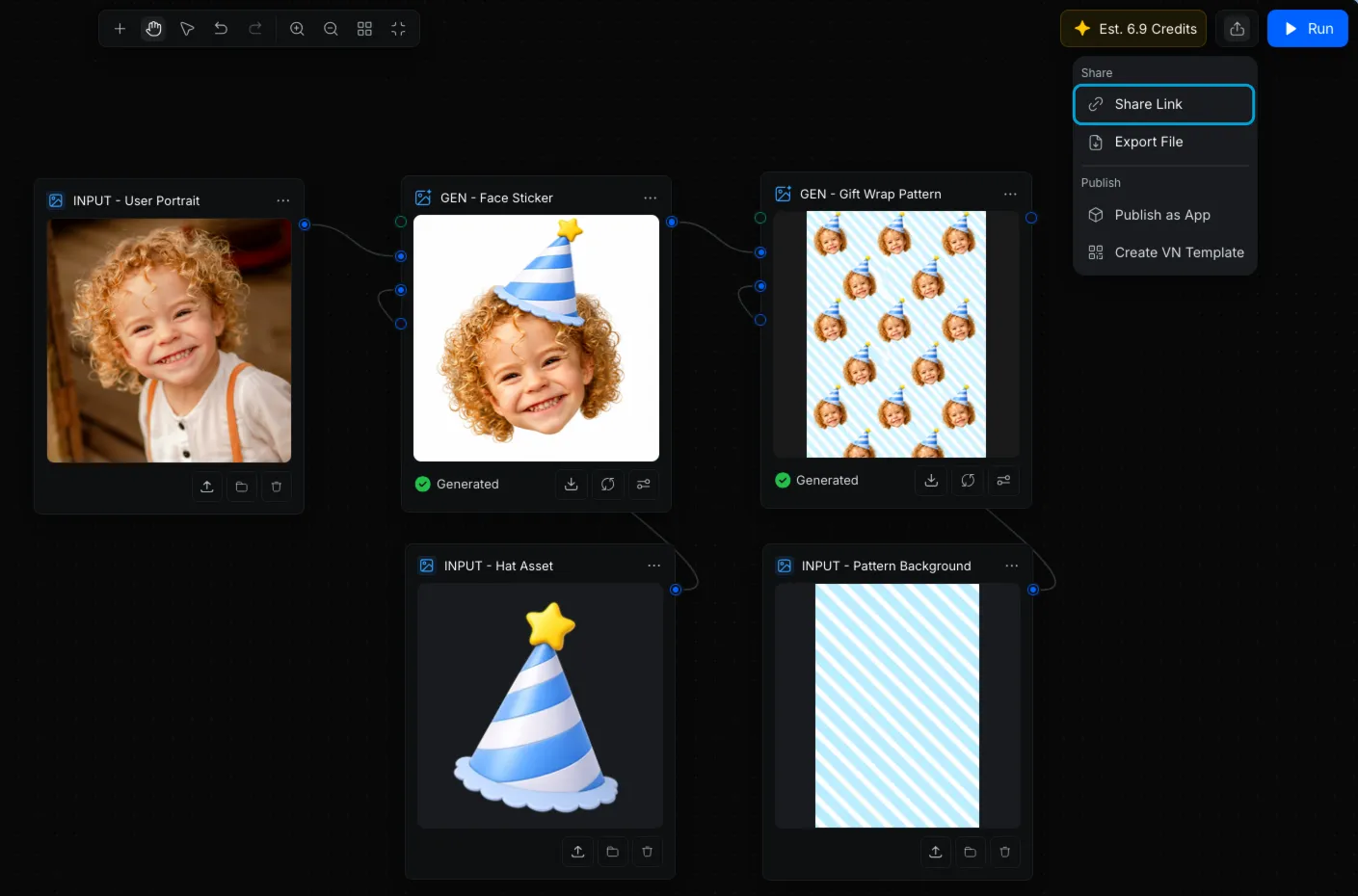
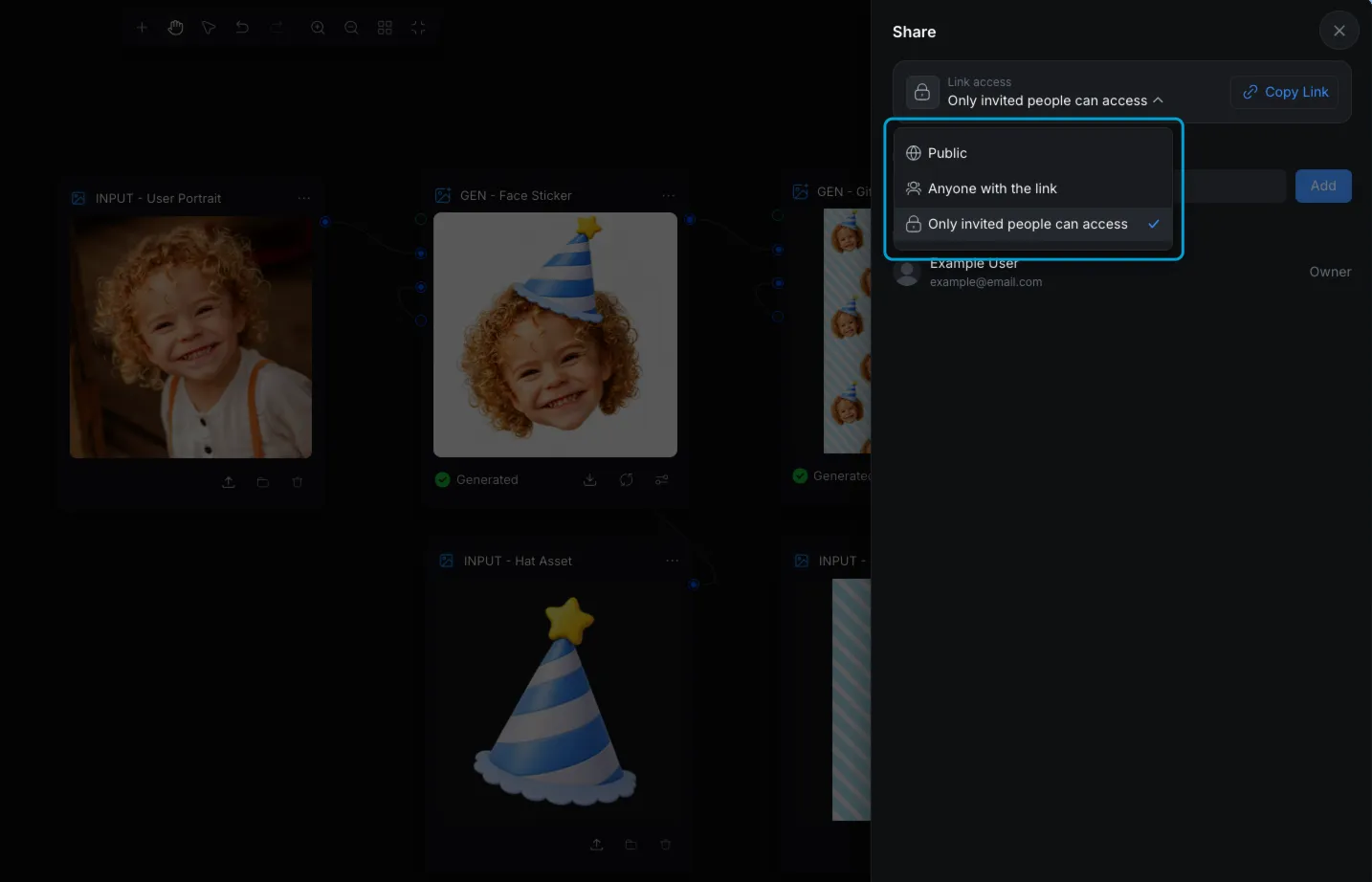
2. Under link access, set the desired permissions. You can choose from:
- Public
- Anyone with the link
- Only invited people can access
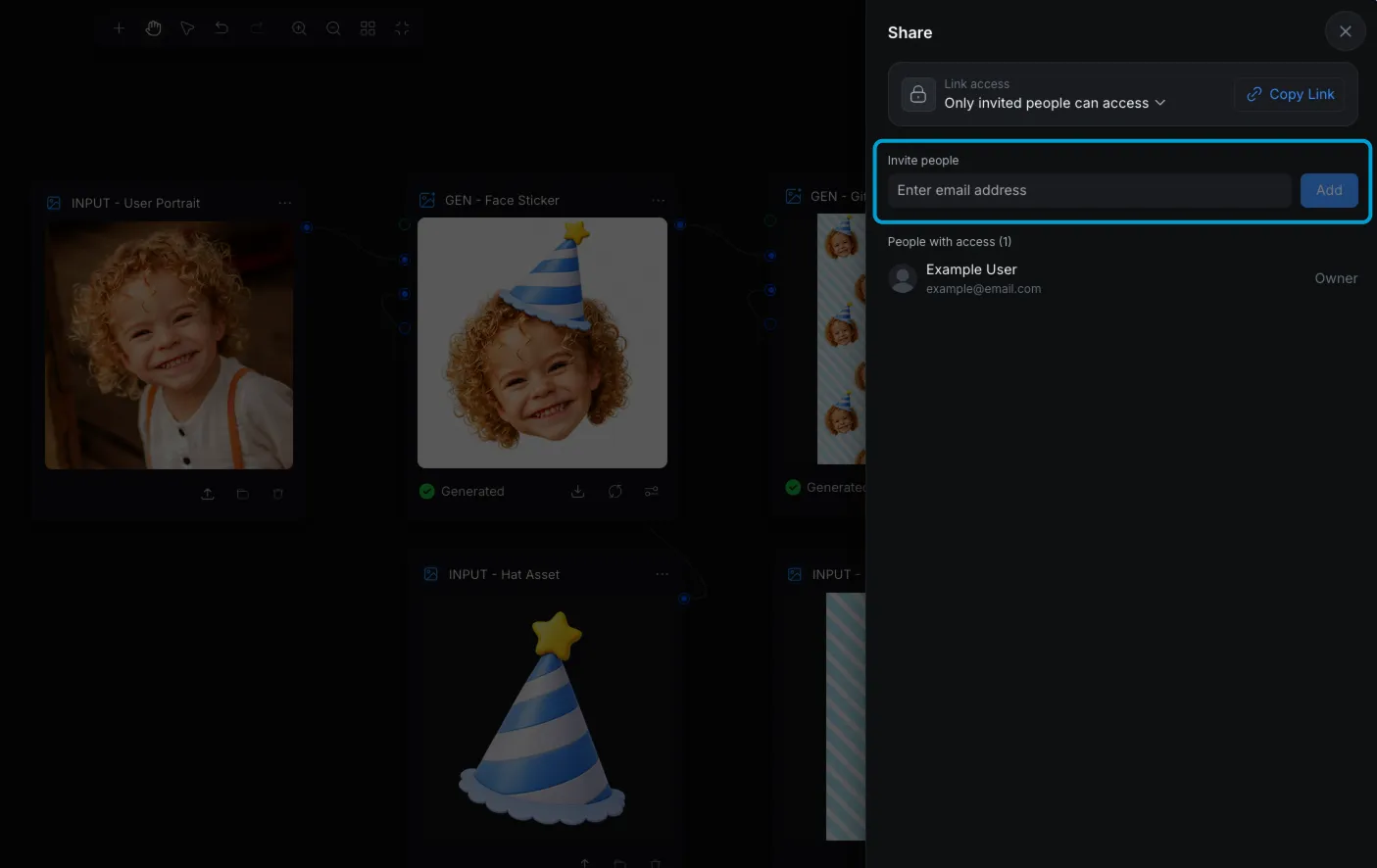
3. Click Copy Link to manually share the workflow URL.
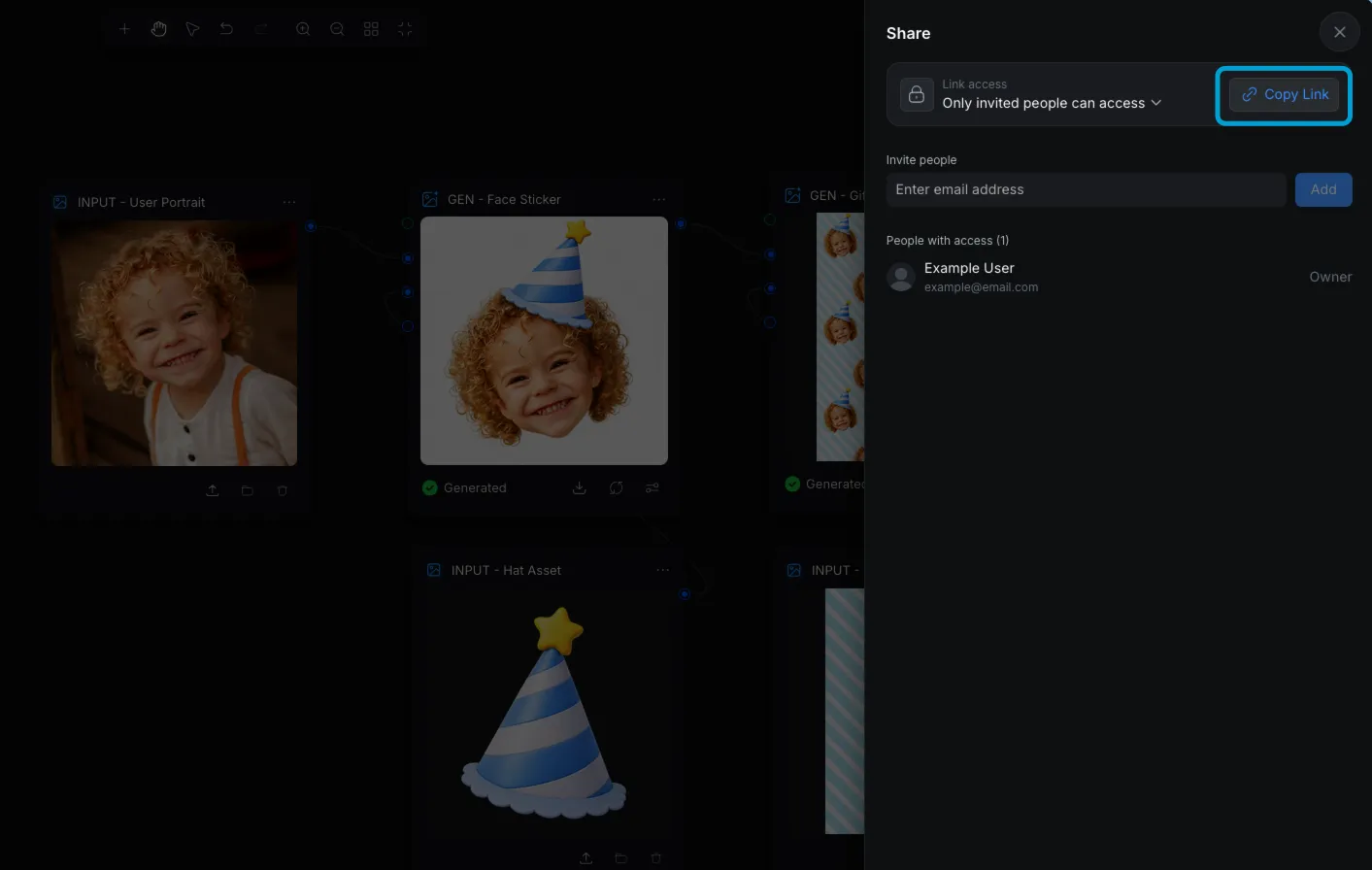
4. Alternatively, you can use the input field to directly invite via email address, click Add after you put in the email.